


How to Send Your Accountant Everything They Need Without a Single Email Attachment
Most UK sole traders spend hours, sometimes days, preparing documents for their accountant before Self Assessment. Sorting receipts, exporting spreadsheets, pulling invoice totals, writing explanatory emails.
Here is how to do the same thing in five minutes using Built For Small Business.
What are you sending your accountant?
Before we get to the how, let us be clear about the what. Your accountant needs three things for Self Assessment:
- Your total invoiced income for the tax year
- Your allowable expenses broken down by HMRC category
- Evidence, receipts and records to support the expenses
- Often, your bank statement for verification
Many accountants also like to cross-check your records against your bank statement. Built For Small Business lets you attach one securely to the same link, so you are not sending it separately.
Everything else is optional context. These four things are non-negotiable.
Minute 1 — Open your expenses and select the tax year
Log in to Built For Small Business and go to Expenses. At the top right, you will see a tax year filter. Select the tax year you need. For most people preparing their Self Assessment, this will be the previous tax year.
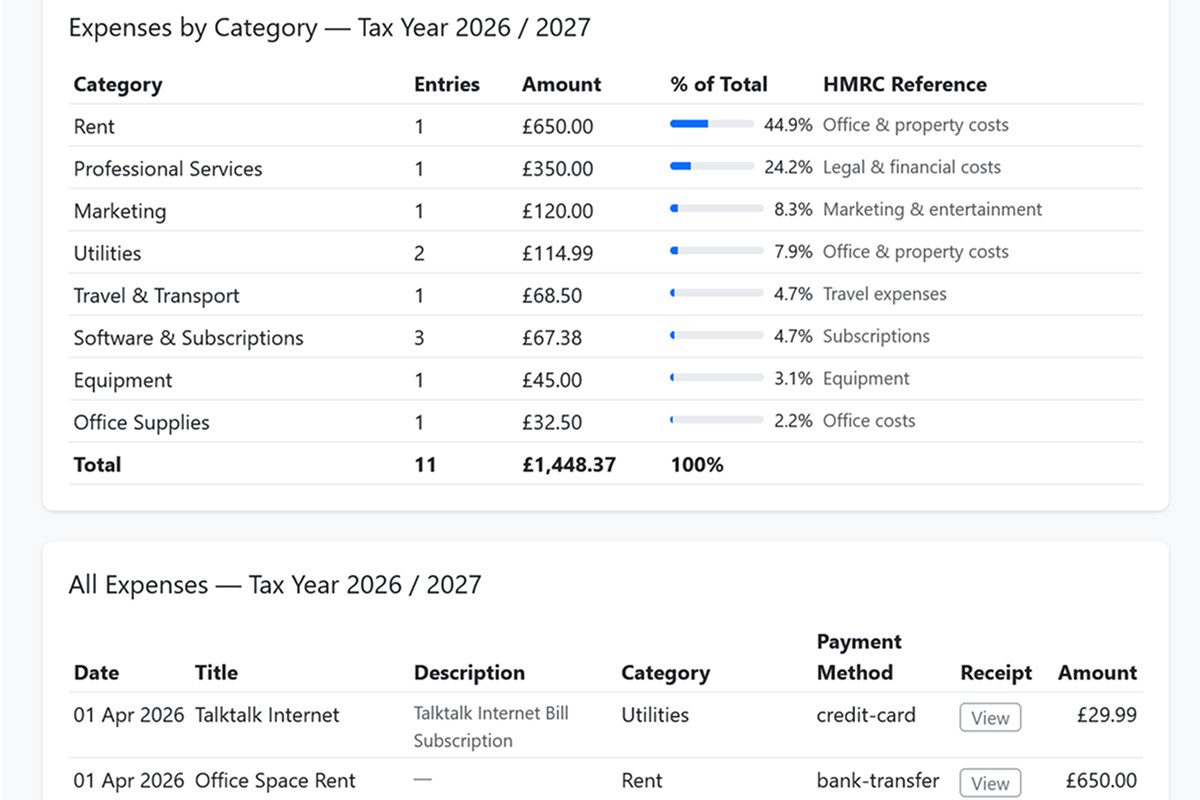
The page updates immediately. You can see your total expenses for that year, how they break down by category, and the HMRC reference for each category.
This is what used to take an afternoon of spreadsheet work. It is now one click.

Minute 2 — Generate the accountant's share link
Click Share with Accountant. A modal appears with a secure link.
You will always be able to see exactly when your accountant opened the link and what they downloaded from your own dashboard.
The link is valid for 30 days. Anyone who has it can view your expense report, no login required. Your accountant does not need a BFSB account.
Copy the link.
Minute 3 — What your accountant sees
When your accountant opens the link, they see:
- Your company name and logo at the top
- The tax year the report covers
- Total expenses for the year
- A full category breakdown with HMRC references, rent maps to office and property costs, travel maps to car and travel expenses, and so on
- Every individual expense has a title, description, category, payment method, and date
- A View Receipt button next to every expense that has a receipt attached
- A Download Excel button so they can save a copy for their own records
A tax estimate showing their total income, expenses, and an estimated tax liability, if you have entered your income for the year
A secure, password-protected bank statement download, if you have chosen to upload one, and it's worth adding a short paragraph after the bullet list, since this is genuinely worth explaining rather than just listing:
If you have entered your total income for the tax year on the Expenses page, your accountant also sees a full tax estimate, broken down into income tax, National Insurance, and take-home pay. This means that before you even speak to them, they already have a starting point for what you are likely to owe.
This is a clean, professional document that tells your accountant exactly what they need to know without any back and forth.

Minute 4 — Send your invoice totals
Go to Invoices. Select the same tax year from the filter at the top.
You will see three numbers at the top of the page:
- Total invoiced for the tax year
- Total received
- Total outstanding
Screenshot these or copy the numbers into your email to your accountant. If you want to give them more detail, click Export and download the invoice Excel for that tax year — it includes every invoice with the client name, date, amount, VAT, and status.
Minute 5 — Send the email
Your email to your accountant now looks like this:
Hi [accountant name],
Here are my records for the 2025/2026 tax year.
Invoice summary: Total invoiced: £48,200 Total received: £44,800 Outstanding: £3,400
Expense breakdown, full report with receipts: [link]
Let me know if you need anything else.
That is it. Five minutes. Everything your accountant needs, organised exactly the way they want it, with receipts attached and an Excel download available if they need it.
Why this matters beyond saving time
Organised clients cost their accountants less time. Accountants charge for time. The cleaner and more structured the information you send, the lower your bill, or at a minimum, the more time your accountant can spend on advice rather than administration.
An accountant who receives a clean BFSB expense report with HMRC categories already mapped has very little organising to do. They can go straight to reviewing the numbers and filing your return.
The habit that makes this possible
None of this works if you have not been logging expenses throughout the year. The five-minute send is only possible because thirty seconds of logging happened a hundred times before it.
Built For Small Business makes that logging as frictionless as possible. Add an expense in under a minute. Attach the receipt. Assign the category. Move on. By tax time, everything is already there.
Free forever. No subscription. No trial. No credit card.
Related articles you might like


Share:
